Scheduler Trigger
The Scheduler Trigger allows you to run your AI agent automatically at defined times or intervals—without any user interaction.
It is ideal for recurring, time-based workflows such as reports, monitoring, cleanups, reminders, and background automation.
Overview
With the Scheduler Trigger, your agent can run:
- At regular intervals (every few minutes, hours, days)
- At fixed times (daily, weekly, monthly)
- Using Cron expressions for advanced scheduling
Each scheduled execution:
- Runs independently
- Uses the same agent instructions and tools
- Executes based on the selected timezone
This makes the Scheduler perfect for hands-free automation.
When Should I Use Scheduler?
Use the Scheduler Trigger when:
- No user interaction is required
- Tasks must run automatically on time
- Work needs to happen in the background
Common use cases
- Daily / weekly reports
- Periodic data sync
- Monitoring & alerts
- Maintenance jobs
- Scheduled notifications
- Monthly reconciliation or billing
Configure Scheduler Trigger
Step 1: Add Scheduler Trigger
- Go to DronaHQ → Agents → Triggers
- Click + Add Trigger
- Select Scheduler
Step 2: Basic Configuration
Name
- Provide a clear, descriptive name
Examples:Daily Sales ReportWeekly Health CheckMonthly Cleanup Job
- The name helps identify the trigger in logs and UI
- Required field
Timezone
- Select the timezone in which the schedule should run
- The agent executes strictly according to this timezone
Examples
Asia/CalcuttaAmerica/New_YorkEurope/London
Always choose the timezone carefully.
All schedules—including Cron—are evaluated using this timezone.
Step 3: Configure Frequency
You can configure schedules in two ways:
| Option | Best For |
|---|---|
| Interval | Simple, human-friendly schedules |
| Cron | Advanced, precise control |
Interval Schedule (Recommended for Most Users)
The Interval option lets you create schedules without writing Cron expressions.
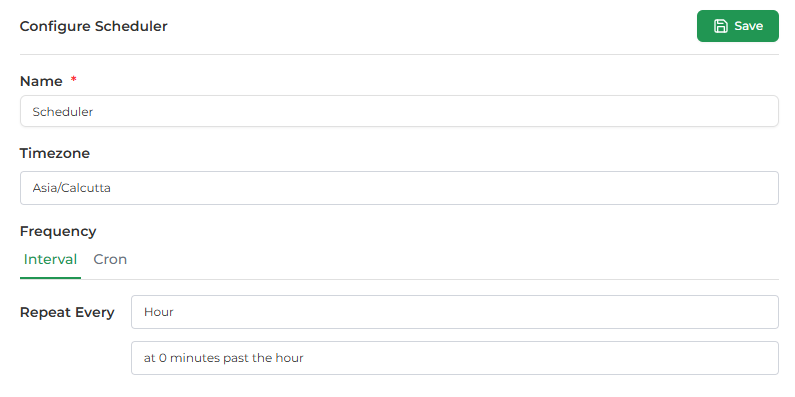
Repeat Every
Choose how often your agent should run:
- Minute – Every N minutes
- Hour – Every N hours
- Day – Once per day at a fixed time
- Week – On selected day(s) at a fixed time
- Month – On a specific date each month
Interval Examples
Every 5 Minutes
- Repeat Every:
Minute - Interval:
5
Every Hour
- Repeat Every:
Hour - Time:
at 0 minutes
Daily at 9:00 AM
- Repeat Every:
Day - Time:
9:00 AM
Weekly on Sunday at Midnight
- Repeat Every:
Week - Day:
Sunday - Time:
12:00 AM
Monthly on the 1st at Midnight
- Repeat Every:
Month - Day:
1st - Time:
12:00 AM
The Interval scheduler always shows a human-readable preview so you can verify the timing before saving.
Cron Schedule (Advanced)
Use Cron when you need:
- Complex rules
- Business-hour logic
- Multiple days or ranges
- Fine-grained control
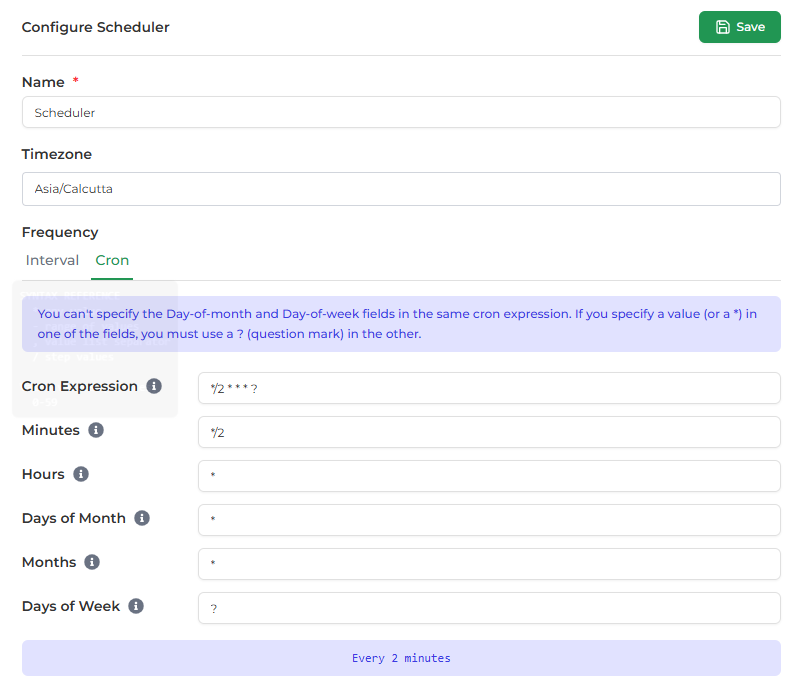
Cron Expression Format
Cron expressions consist of five fields:
┌───────────── minute (0–59)
│ ┌───────────── hour (0–23)
│ │ ┌───────────── day of month (1–31, L, ?)
│ │ │ ┌───────────── month (1–12 or JAN–DEC)
│ │ │ │ ┌───────────── day of week (1–7 or SUN–SAT, ?)
│ │ │ │ │

*  *  *  *  ?
Cron Symbols
| Symbol | Meaning |
|---|---|
* | Any value |
- | Range |
, | List |
/ | Step value |
? | No specific value |
Important Cron Rule
Day-of-Month vs Day-of-Week
You cannot specify both fields at the same time.
- If you define day-of-month, set day-of-week to
? - If you define day-of-week, set day-of-month to
?
Valid
0 9 * * ?→ Every day at 9 AM0 9 ? * MON→ Every Monday at 9 AM
Invalid
0 9 1 * MON
Common Cron Examples
Every 2 Minutes
*/2 * * * ?
Every Day at 9:30 AM
30 9 * * ?
Monday, Wednesday, Friday at 9 AM
0 9 ? * MON,WED,FRI
First Day of Every Month
0 0 1 * ?
Weekdays (Jan–Sep) at 9:30 AM
30 9 ? 1-9 MON-FRI
Schedule Preview
As you type a Cron expression, the scheduler shows a human-readable explanation.
Example
*/2 * * * ?
→ Every 2 minutes
Always verify this preview before saving.
Step 4: Save Configuration
- Review the schedule preview
- Confirm timezone and timing
- Click Save
Once saved, the scheduler will automatically trigger your agent.
Best Practices
- Prefer Interval unless Cron is required
- Always double-check the timezone
- Use clear, descriptive trigger names
- Test your agent logic before using long intervals
- Monitor tracing regularly
- Be mindful of daylight saving changes (if applicable)
Next Steps
- Monitor tracing to confirm runs
- Combine Scheduler with:
- Webhook Trigger for hybrid automation
- WhatsApp Trigger for proactive messaging