What are Artifacts?
Artifacts allows developers to dynamically create, render, and manage various document and code formats within the DronaHQ agentic platform. This component is essential for workflows requiring real-time content generation, such as automated reporting, CMS management, or live code sandboxing.
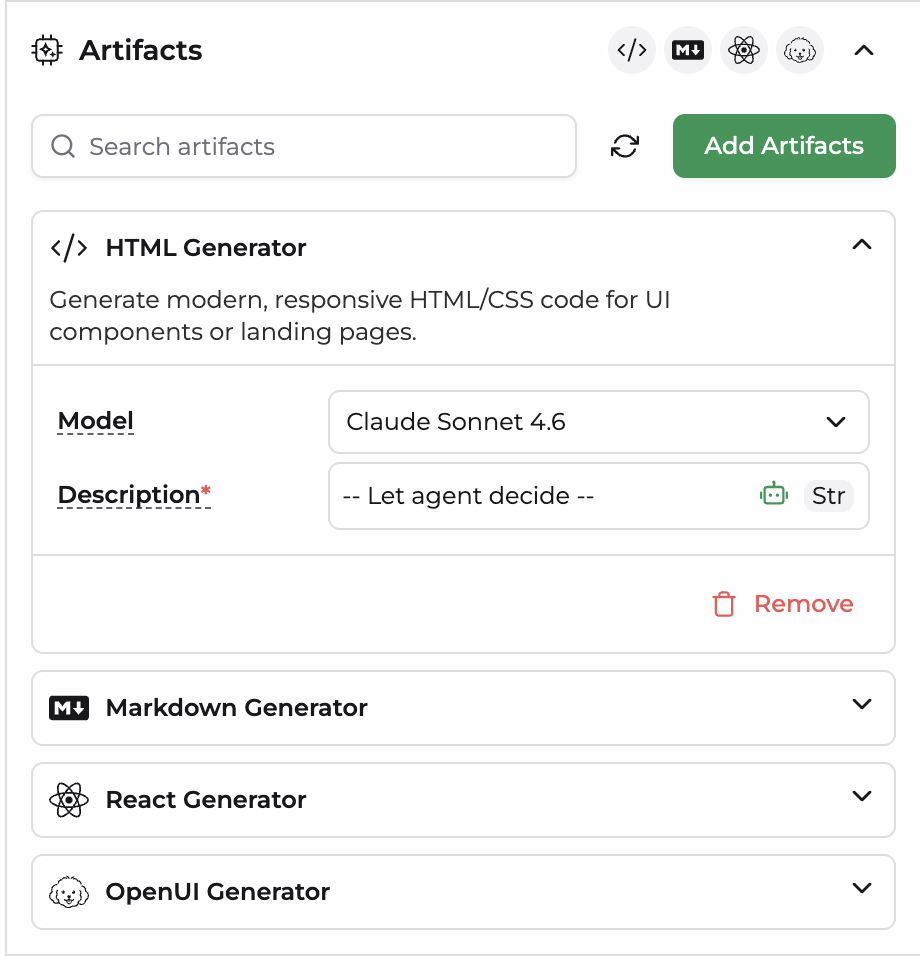
Supported Artifact Types
The component supports three primary generation modes based on your workflow requirements: HTML Generator, Markdown Generator, and React Generator.
1. HTML Generator
Generates modern, responsive HTML/CSS for UI components or landing pages.
| Property | Type | Description |
|---|---|---|
| Model | String (Enum) | Supported models: claude-opus-4.6, claude-4.7, claude-haiku-4.5, claude-sonnet-4.6 |
| Description | String | Describe the UI components you want to generate, or let the agent decide dynamically. |
2. Markdown Generator
Generates well-structured markdown documents, README files, technical documentation, blogs, reports, or notes.
| Property | Type | Description |
|---|---|---|
| Model | String (Enum) | Supports all available LLM providers within the platform. |
| Description | String | Describe the markdown document you want to generate, or let the agent decide dynamically. |
3. React Generator
Generates React (.jsx) files, dashboards, Single Page Applications (SPAs), interactive components with state management, charts, games, tools, and calculators.
| Property | Type | Description |
|---|---|---|
| Model | String (Enum) | Supported models: claude-opus-4.6, claude-4.7, claude-haiku-4.5, claude-sonnet-4.6 |
| Description | String | Describe the react component or app you want to generate, or let the agent decide dynamically. |
4. OpenUI Generator
Generates structured OpenUI Lang documents that render rich, interactive chat interfaces—including cards, tables, charts, forms, and sections
| Property | Type | Description |
|---|---|---|
| Model | String (Enum) | Supports all available LLM providers within the platform (not limited to Claude). |
| Description | String | Describe the UI structure you want to generate, or let the agent decide dynamically. |
Frequenty Answered Questions(FAQs)
FAQ 1: How can I monitor AI agent performance and costs in DronaHQ?
The Monitoring dashboard provides real-time visibility into AI agent performance, usage, and operational costs. You can track metrics such as Total AI Credits Used, Total Tool Calls, Active Agents, and AI Credits Used Over Time. These insights help identify high-cost workflows, monitor platform adoption, and optimize agent efficiency.
FAQ 2: What is the difference between the Analytics Dashboard and Traces in AI Agent Monitoring?
The Analytics Dashboard provides an aggregated view of AI agent activity, including usage trends, costs, and tool consumption across your workspace. The Traces section provides execution-level visibility, allowing you to inspect individual agent runs, triggers, tool calls, latency, messages, and credit consumption for troubleshooting and debugging purposes.
FAQ 3: How do I troubleshoot AI agent workflows using Traces?
The Traces view acts as a detailed execution log for every AI agent run. You can inspect the trigger event, input messages, agent selected, external tool calls, execution latency, and credit usage. This helps identify failed workflows, slow API responses, incorrect outputs, integration issues, and opportunities to optimize agent performance.
FAQ 4: Why are my AI agent costs or AI credit usage increasing?
An increase in AI credit consumption is typically caused by higher agent activity, increased tool calls, longer AI model responses, or multi-step workflows. Use the AI Credits Used Over Time chart and Traces view to identify specific agents, executions, or integrations responsible for increased usage and operational costs.
FAQ 5: How long are AI agent execution logs and traces retained?
AI agent trace data is retained for 30 days. During this retention period, you can review execution history, analyze workflow behavior, investigate failures, measure latency, and track credit consumption. After 30 days, trace records are automatically removed from the system.