Plivo Phone Number
Import a phone number directly from your Plivo account and connect it to a DronaHQ voice agent.
This is the fastest path if you already use Plivo. You paste three values from the Plivo Console and DronaHQ does the rest.
Overview
When the setup is complete:
- Your agent has a real, callable Plivo phone number attached.
- The agent can place outbound calls to any phone number.
- Calls are routed through Plivo using your own Plivo credentials.
- The same number can be attached to any voice agent in your workspace.
When to Use This
Use the Plivo phone number flow when:
- You already use Plivo (or want to start there)
- You want a working agent in minutes
- You don't already operate a SIP trunk
If you already have a Plivo Zentrunk or other SIP trunk and want to route calls through it, use SIP Trunking with Plivo instead.
Prerequisites
Before you start, make sure you have:
- An active Plivo account
- At least one voice-capable phone number purchased in your Plivo account
- Your Plivo Auth ID and Plivo Auth Token (covered in Step 1 below)
Configure a Plivo Number
Step 1: Locate your Plivo credentials
- Sign in to the Plivo Console.
- Open Account → Account Settings → API → Keys & Credentials (the exact menu name is Account → Keys & Credentials in the newer console).
- Copy the Auth ID — it always starts with
MA…. - Copy the Auth Token that appears next to it.
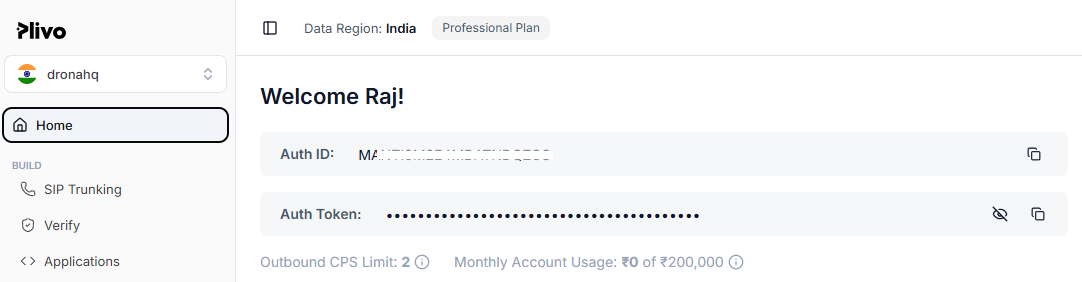
Treat the Auth Token like a password. Anyone with this token can place calls and send SMS on your Plivo account. Never share it in screenshots, support tickets, or public channels.
Step 2: Open the Add Phone Number flow in DronaHQ
- Go to DronaHQ → Voice Agent → Phone Numbers.
- Click Add Phone Number.
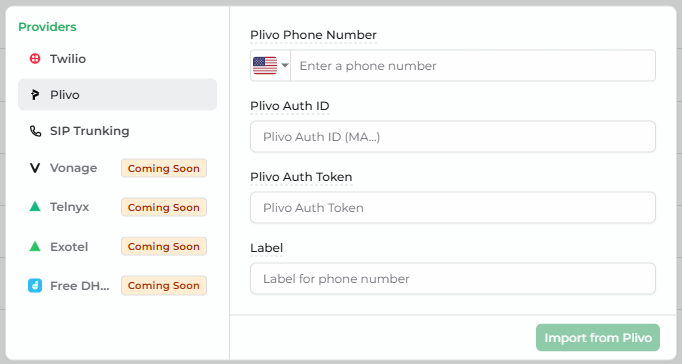
- From the provider list on the left, select Plivo.
Step 3: Enter your Plivo details
Fill in the form with the values you collected:
Plivo Phone Number
- Paste the phone number in E.164 format (international format with
+and country code). - Examples:
+14155551234,+919876543210,+442071838750. - This must be a number you have already purchased in your Plivo account.
- Required field.
Plivo Auth ID
- Paste the Auth ID copied from the Plivo Console.
- It always begins with
MA. - Required field.
Plivo Auth Token
- Paste the Auth Token copied from the Plivo Console.
- The token is encrypted before it is saved and is never displayed again.
- Required field.
Click Import from Plivo.
Step 4: Verification
DronaHQ contacts Plivo with the credentials you provided and confirms that:
- The credentials are valid
- The number actually belongs to that Plivo account
- The number is voice-capable
On success you'll see the toast "Phone number imported from Plivo" and the number appears in your Phone Numbers list along with its detected capabilities.
Step 5: Attach the number to a voice agent
- Open the voice agent you want to attach this number to.
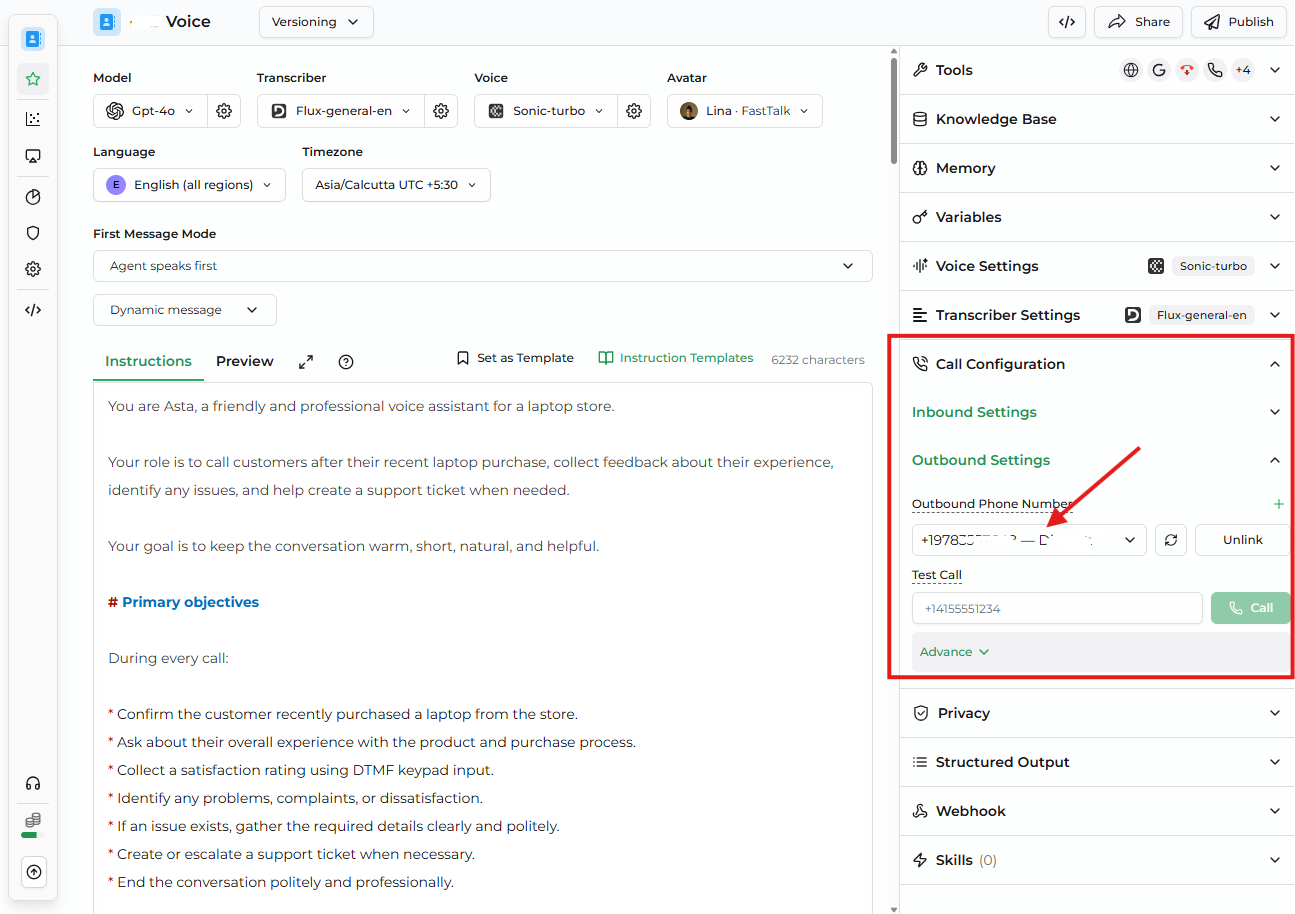
- In the right-side panel, expand Call Configuration → Outbound Settings.
- From the Outbound Phone Number dropdown, select the Plivo number you just imported.
The selected number is now used as the caller ID for outbound calls placed by this agent.
Testing Your Setup
Place a test outbound call from the same panel you used to attach the number:
- With the agent open, stay in Call Configuration → Outbound Settings.
- Confirm the Outbound Phone Number dropdown shows the Plivo number you just imported.
- In the destination field next to it, enter your own mobile number in E.164 format (e.g.
+14155551234). - Click Call.
- Pick up — you should hear the agent speak.
Inbound calls and warm transfer are coming soon for Plivo. The current release supports outbound calls and blind transfer.
Troubleshooting
| Problem | Likely cause | Fix |
|---|---|---|
| "Number not found in your Plivo account" | Wrong sub-account, or number not purchased yet | Confirm the Auth ID is from the same Plivo project as the number |
| "Invalid credentials" | Auth Token rotated, or copied with extra characters | Copy the Auth Token again from the Plivo Console — beware leading/trailing whitespace |
| Auth ID rejected | Pasted with the wrong case or missing the MA prefix | The Auth ID always begins with MA and is case-sensitive |
| Cannot see the token again after saving | This is by design — tokens are encrypted on save | If the token is lost, regenerate it in the Plivo Console and re-add the number |
| Calls fail to specific countries | Geo-permissions blocked in Plivo | Enable the destination country in the Plivo Console's voice settings |
Best Practices
- Use a separate Plivo sub-account per environment so test calls never hit real customers.
- Rotate your Auth Token if you suspect it has been exposed.
- Set a billing alert in Plivo so you're notified before high call volume eats through your balance.
- Pick a number whose country and area code match your audience to improve answer rates.
What's Next
- Twilio Phone Number — connect a Twilio number using the same flow
- SIP Trunking with Plivo — route this number through an existing Plivo Zentrunk
- Telephony Introduction — back to the overview