Public Access
When you set your agent's access to Public, anyone with the link can open and interact with it — no DronaHQ account, no invite needed. This is the right mode when your agent is intended for broad audiences such as a website visitor, a customer, or an anonymous user.
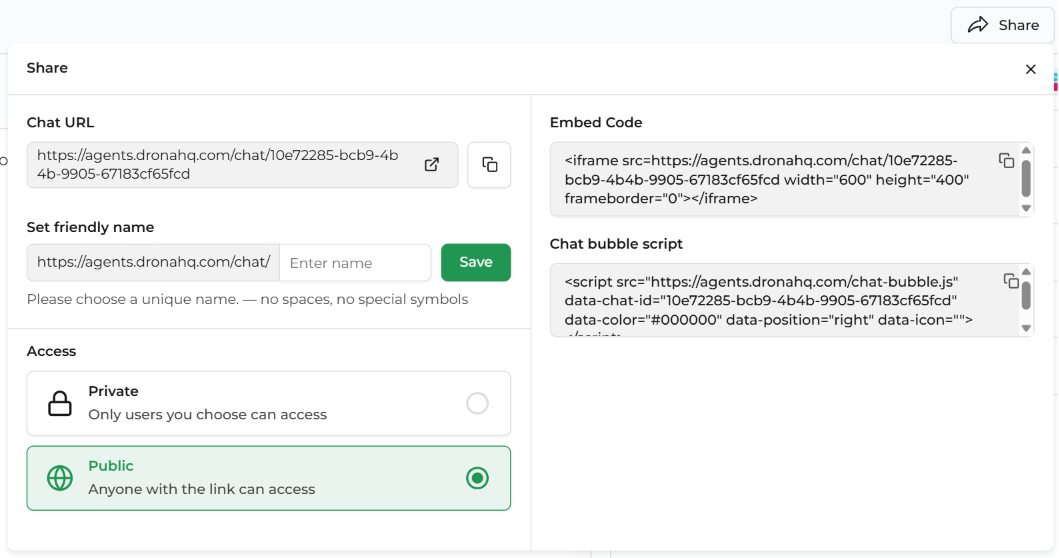
DronaHQ gives you three ways to share a public agent:
- Chat URL — a direct link you can share anywhere
- Embed Code — an
<iframe>snippet to drop into any webpage - Chat bubble script — a floating chat widget that overlays your site
To configure access, open your agent and click Share in the top bar. Under Access, select Public — Anyone with the link can access.
Chat URL
The Chat URL is a direct, shareable link to your agent. You can copy it and send it via email, Slack, documentation, or any other channel.
https://agents.dronahq.com/chat/<agent-id>
Setting a friendly name
By default the URL contains your agent's unique ID. You can replace it with a human-readable slug using Set friendly name:
- In the Share panel, find the Set friendly name field
- Enter a name — no spaces, no special symbols (e.g.
support-bot,onboarding-helper) - Click Save
Your agent will then be accessible at:
https://agents.dronahq.com/chat/<your-friendly-name>
⚠️ Note: Friendly names must be unique across DronaHQ. If the name is already taken, you'll be prompted to choose another.
Embed Code
The Embed Code lets you place the agent inside any webpage as an inline iframe. The Share panel generates the snippet automatically — just copy and paste it into your HTML.
<iframe
  src="https://agents.dronahq.com/chat/<agent-id>"
  width="600"
  height="400"
  frameborder="0">
</iframe>
Customising the iframe
You can adjust the width and height attributes to fit your layout. For a fully responsive embed, use CSS instead:
<div style="position: relative; width: 100%; padding-bottom: 66%;">
  <iframe
    src="https://agents.dronahq.com/chat/<agent-id>"
    style="position: absolute; inset: 0; width: 100%; height: 100%; border: none;">
  </iframe>
</div>
Chat Bubble Script
The Chat bubble script adds a floating chat button to your site. When a visitor clicks it, the agent opens as an overlay — without navigating away from the page.
Copy the script from the Share panel and paste it before the closing </body> tag on any page:
<script
  src="https://agents.dronahq.com/chat-bubble.js"
  data-chat-id="<agent-id>"
  data-color="#000000"
  data-position="right"
  data-icon="">
</script>
Script attributes
| Attribute | Description |
|---|---|
data-chat-id | Your agent's unique ID — pre-filled automatically from the Share panel |
data-color | Hex colour of the chat bubble button (e.g. #000000 for black) |
data-position | Position of the bubble on screen — right or left |
data-icon | Optional URL for a custom icon image inside the bubble button |
Tip: Match
data-colorto your brand's primary colour so the widget feels native to your site.