Standard Embed Overview
DronaHQ provides different ways in which public agents can be embedded in your own portals, applications, or websites. These agents work openly without any authentication — ideal for use cases like customer support widgets, lead capture bots, onboarding assistants, or any agent you want to surface directly on your site.
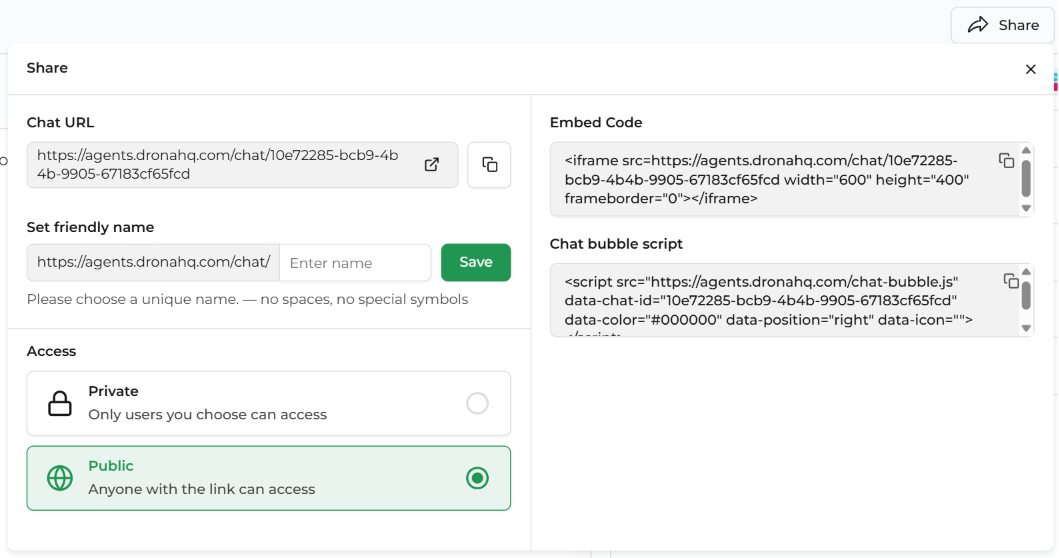
You have the following options to embed a public agent:
- iFrame — embed the agent inline as part of a page layout
- Chat bubble script — add a floating chat button that overlays any page
- Embed code — copy a ready-to-use snippet directly from the Share panel
To access these options, open your agent, click Share in the top bar, and set Access to Public. The embed options will appear in the right-hand panel.
iFrame
An iFrame embeds the agent directly inside your webpage as an inline element. The agent loads within a defined area of your page — useful for dedicated chat pages, sidebars, or support sections.
<iframe
  src="https://agents.dronahq.com/chat/<agent-id>"
  width="600"
  height="400"
  frameborder="0">
</iframe>
Adjust width and height to fit your layout. For a fully responsive embed that scales with the page, use this CSS wrapper instead:
<div style="position: relative; width: 100%; padding-bottom: 66%;">
  <iframe
    src="https://agents.dronahq.com/chat/<agent-id>"
    style="position: absolute; inset: 0; width: 100%; height: 100%; border: none;">
  </iframe>
</div>
💡 Tip: Use
frameborder="0"andborder: nonetogether to avoid double borders across different browsers.
Chat Bubble Script
The Chat bubble script adds a floating chat button that sits fixed on your page. Visitors click it to open the agent as an overlay — without leaving the page they're on. This is the least intrusive way to surface an agent on an existing site or product.
Paste the script before the closing </body> tag on any page where you want the bubble to appear:
<script
  src="https://agents.dronahq.com/chat-bubble.js"
  data-chat-id="<agent-id>"
  data-color="#000000"
  data-position="right"
  data-icon="">
</script>
Attributes
| Attribute | Required | Description |
|---|---|---|
data-chat-id | Yes | Your agent's unique ID — copy it from the Share panel |
data-color | No | Hex colour of the bubble button. Defaults to #000000 |
data-position | No | Screen position of the bubble — right (default) or left |
data-icon | No | URL of a custom icon image to display inside the bubble button |
💡 Tip: Set
data-colorto your brand's primary colour so the widget blends naturally into your site.
Embed Code
The Embed Code is a pre-filled snippet generated directly from the Share panel — it includes your agent's ID already filled in, so you can copy and paste it without any manual edits.
To get it:
- Open your agent and click Share
- Set Access to Public
- Copy the snippet from the Embed Code box on the right
The snippet is an iFrame by default:
<iframe
  src="https://agents.dronahq.com/chat/<agent-id>"
  width="600"
  height="400"
  frameborder="0">
</iframe>
This is the quickest way to get up and running — no configuration needed beyond pasting it into your page.
Choosing the Right Embed Method
| iFrame | Chat Bubble Script | Embed Code | |
|---|---|---|---|
| Placement | Inline within page layout | Floating overlay on page | Inline (same as iFrame) |
| Customisable size | Yes | No (fixed bubble) | Yes |
| Disrupts page layout | No | No | No |
| Best for | Dedicated chat sections | Surfacing agent on existing pages | Quick copy-paste setup |
| Setup effort | Low | Low | Minimal |