SIP Trunking with Twilio
Connect a Twilio Elastic SIP Trunk to DronaHQ so your voice agent can place outbound calls through it. Use this guide when you already have a SIP trunk on Twilio — for example, a trunk you provisioned for your call centre, PBX, or contact platform — and want your agent to share that trunk.
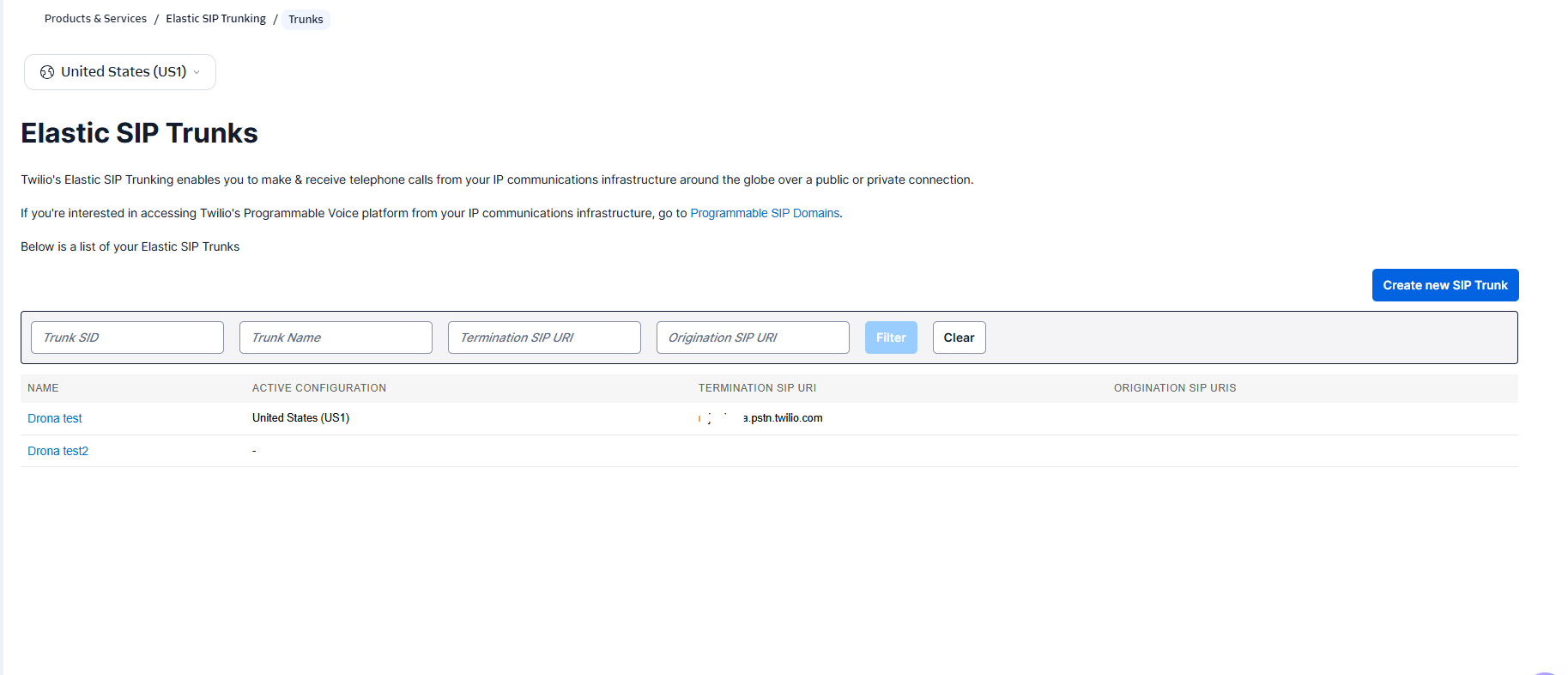
When to Use This
Use this flow when:
- You already operate a Twilio Elastic SIP Trunk
- You want your voice agent to share an existing trunk with your other telephony systems
- You want to keep your existing Twilio rates / contract for these calls
If you only want a quick Twilio number with no trunk involvement, use the Twilio Phone Number flow instead.
Prerequisites
- A Twilio account with Elastic SIP Trunking enabled
- At least one phone number purchased in Twilio
- (Optional) The Twilio CLI installed — every step below shows both the Console path and the equivalent CLI command
Configure the Twilio Side
Step 1: Create the SIP trunk in Twilio
Using the Console
- Open the Twilio Console.
- Go to Elastic SIP Trunking → Manage → Trunks.
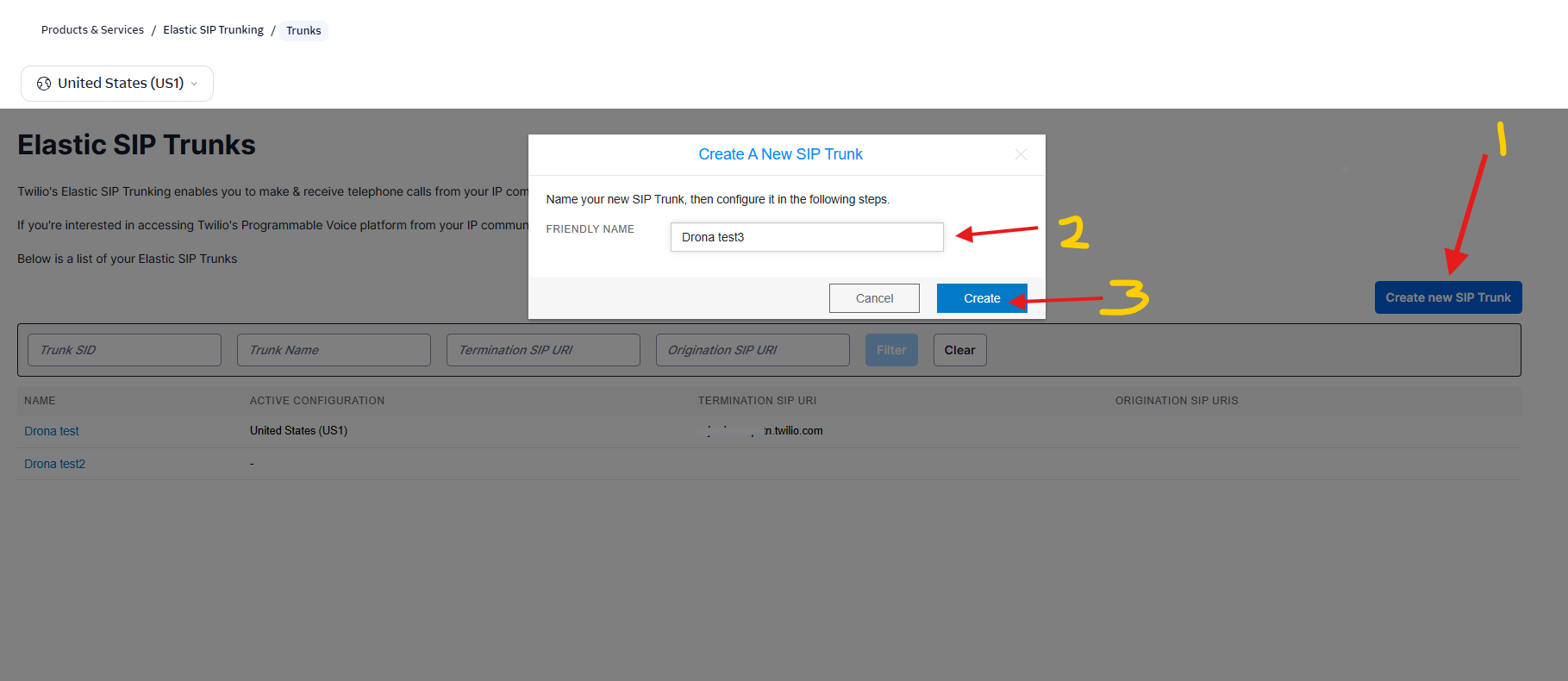
- Click Create new SIP Trunk.
- Give it a friendly name (e.g.,
dronahq-voice-trunk). - Twilio assigns a Termination URI ending in
pstn.twilio.com— write it down. This is the SIP Gateway Host you'll paste into DronaHQ later.
Using the CLI
twilio api trunking v1 trunks create \
  --friendly-name "dronahq-voice-trunk" \
  --domain-name "dronahq-voice-trunk.pstn.twilio.com"
Save the returned Trunk SID — you'll need it for the next CLI steps.
Step 2: Create a credential list (digest auth)
Twilio uses digest authentication to verify outbound traffic on your trunk. You'll create a credential list, set a username and password, and attach the list to the trunk.
- Console: Elastic SIP Trunking → Manage → Credential lists → Create new credential list.
- Pick a name like
dronahq-credentials. - Add a credential with a username and a strong password.
- Open your trunk → Termination → Authentication → Credential Lists → select the credential list you just created → Save.
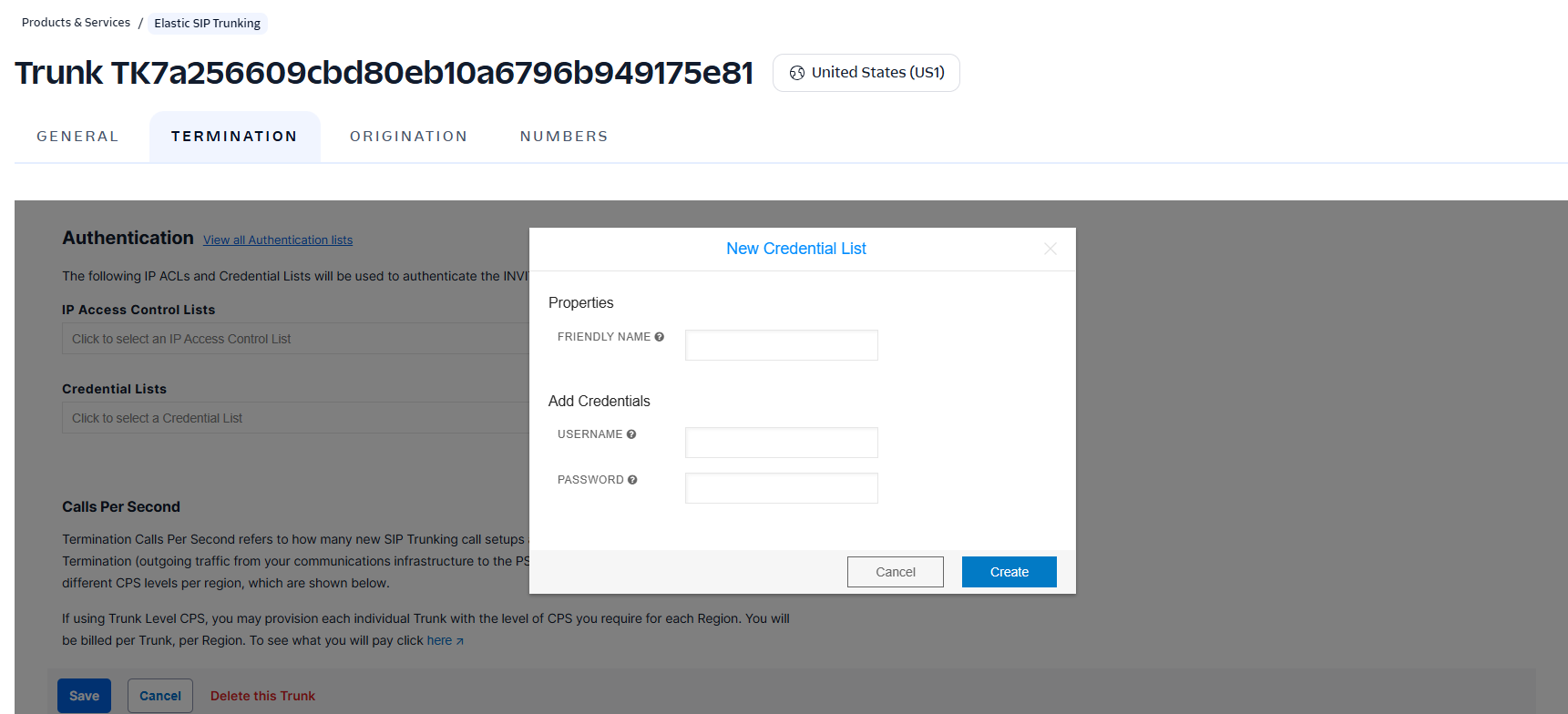
These two values become SIP Auth Username and SIP Auth Password in DronaHQ.
Use a strong password. The credentials authorise outbound calls on your Twilio account — a leaked password can lead to toll fraud.
Step 3: Attach phone numbers to the trunk
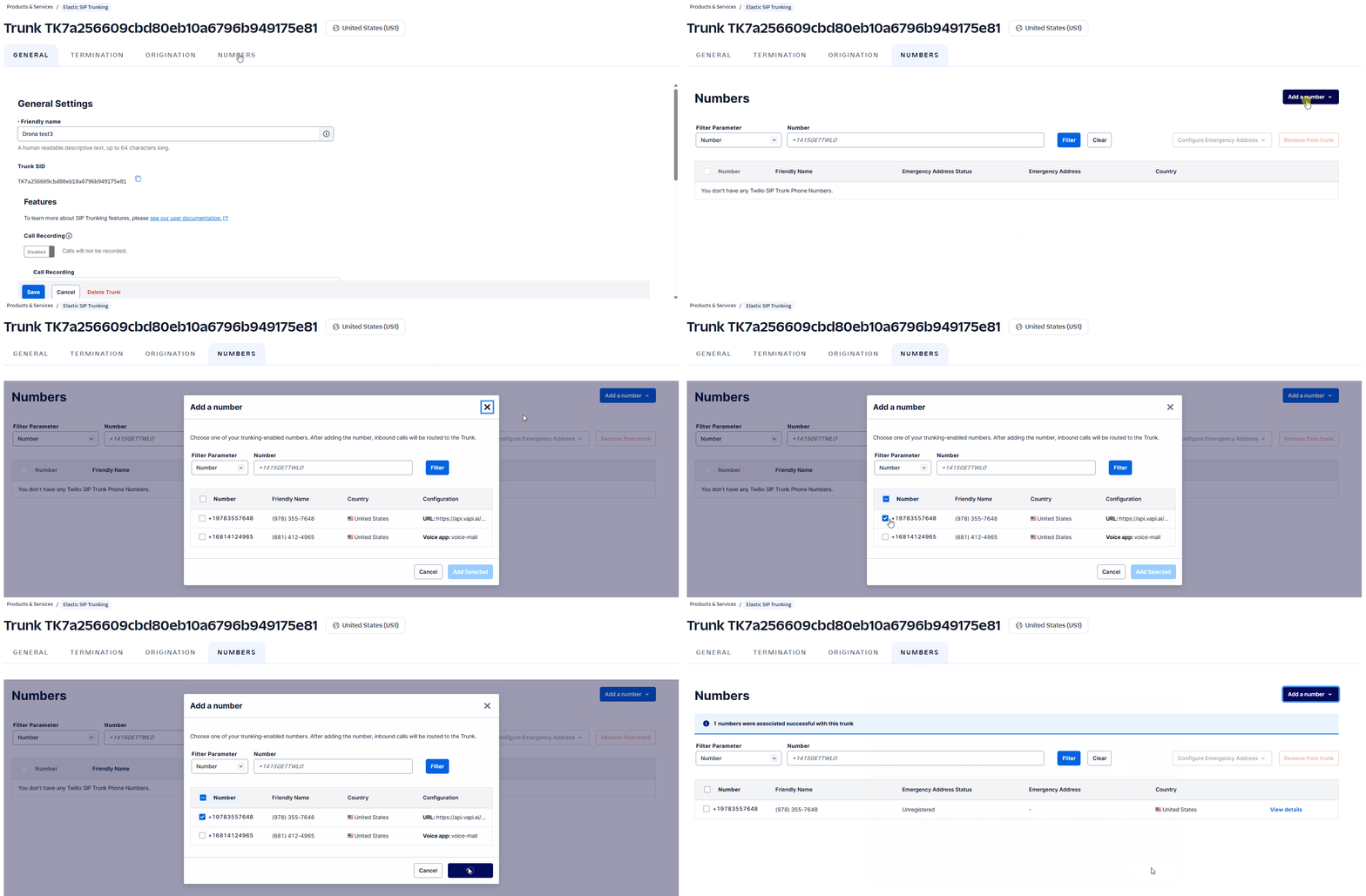
Using the Console
- Open the trunk → Numbers → Add Existing Numbers.
- Select one or more phone numbers from your Twilio account.
- Save.
Using the CLI
twilio api trunking v1 trunks phone-numbers create \
  --trunk-sid <twilio_trunk_sid> \
  --phone-number-sid <twilio_phone_number_sid>
Step 4: Decide on transport
| Transport | Port | Recommended for |
|---|---|---|
| UDP | 5060 | Development, lab testing |
| TLS | 5061 | Production traffic — required when Secure Trunking is enabled on the trunk |
For production, enable Secure Trunking on your Twilio trunk (Twilio Console → trunk → General Settings → Secure Trunking) and use TLS + port 5061 when you add the trunk in DronaHQ.
Configure the DronaHQ Side
Step 5: Add the SIP trunk in DronaHQ
- Go to DronaHQ → Voice Agent → SIP Trunks.
- Click Add SIP Trunk.
- Fill in the form using the values you gathered from Twilio:
Label
- A friendly name for the trunk in DronaHQ.
- Examples:
Production Twilio trunk,EU Outbound Trunk. - Optional but recommended — makes it easier to pick the right trunk in later steps.
SIP Gateway Host
- The Termination URI hostname from Twilio (without the
sip:prefix). - Example:
dronahq-voice-trunk.pstn.twilio.com. - Required field.
Port
5060for UDP/TCP, or5061for TLS.- The port auto-updates to
5061if you pick TLS.
Transport
- Pick UDP, TCP, or TLS.
- Use TLS for production traffic.
SIP Auth Username
- The username from the Twilio credential list you created in Step 2.
- Required field.
SIP Auth Password
- The password from the Twilio credential list.
- The password is encrypted before it is saved and is never displayed again.
- Required field.
Click Add SIP Trunk.
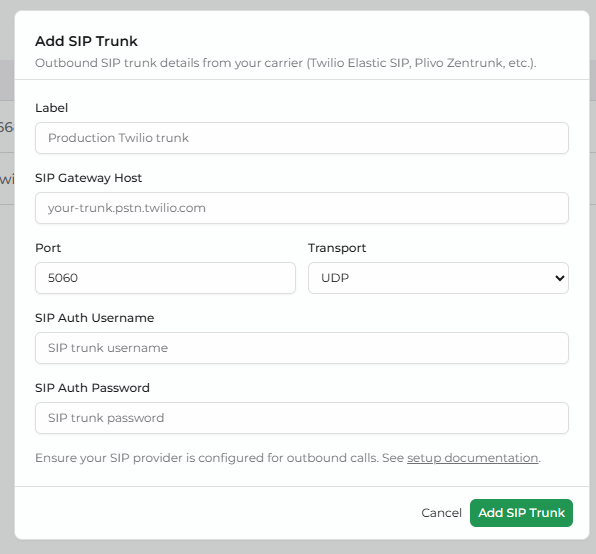
The SIP Auth Password cannot be displayed again after you save. If you lose it, regenerate the credential in Twilio and update the trunk in DronaHQ.
Step 6: Add a phone number that uses this trunk
- Go to DronaHQ → Voice Agent → Phone Numbers.
- Click Add Phone Number.
- Select SIP Trunking from the provider list.
- Enter the phone number in E.164 format (e.g.,
+14155551234) — this must already be attached to the Twilio trunk you configured in Step 3. - Pick the SIP trunk you just added from the SIP Trunk dropdown.
- Click Add BYO SIP Number.
The number now appears in the Phone Numbers list, routed through your Twilio trunk.
Step 7: Attach the number to a voice agent and place a test call
- Open the voice agent you want this trunk number to call from.
- In the right-side panel, expand Call Configuration → Outbound Settings.
- From the Outbound Phone Number dropdown, select the trunk number you added in Step 6.
- In the destination field next to it, enter your own mobile number in E.164 format (e.g.,
+14155551234). - Click Call and pick up — you should hear the agent speak.
The call leg on Twilio's side will appear in your Twilio call logs against the trunk.
Troubleshooting
| Problem | Likely cause | Fix |
|---|---|---|
Twilio returns 401 Unauthorized for outbound calls | Wrong digest username or password | Re-check the credential list values; re-enter the password in DronaHQ |
| Calls connect but drop after a few seconds with TLS | Secure Trunking is not actually enabled on the trunk, or port is 5060 instead of 5061 | Enable Secure Trunking in Twilio and set port 5061 in DronaHQ |
Twilio rejects with 403 Forbidden from a specific geo | Geo-permissions block | Enable the destination country in Twilio's Voice → Settings → Geo-permissions |
| Phone number rejected on Add Phone Number | The number isn't attached to the trunk yet | Go back to Twilio Console → trunk → Numbers → Add Existing Numbers |
| Trunk visible but greyed out | Trunk record is incomplete (missing gateway / username) | Open Voice Agent → SIP Trunks, edit the trunk, and resave |
Best Practices
- Use a separate trunk per environment (dev, staging, production) so test traffic never hits production carrier rates or real customers.
- Rotate credentials if a password is ever exposed — update the trunk in both Twilio and DronaHQ.
- Enable Secure Trunking with TLS for any trunk that handles real customer calls.
- Set a call-rate alert in Twilio so you're notified of unusual traffic spikes.
- Keep the trunk's Termination URI stable — changing it requires updating DronaHQ's SIP Gateway Host to match.
What's Next
- SIP Trunking with Plivo — same flow for Plivo Zentrunk
- Twilio Phone Number — non-trunk Twilio import flow
- SIP Trunking — Introduction — back to the SIP overview