Connecting Databases

The DronaHQ Dashboard offers support for a wide range of databases. If you have the SQLAlchemy URI connection string for a database, you can easily connect it to the DronaHQ Dashboard. Additionally, if you possess an archived database file (e.g., ZIP), you can directly import it to the dashboard.

Some databases might require additional configuration details for connection. For instance, Google Sheets requires authentication via JSON, while Trino necessitates warehouse parameters.

This document provides detailed instructions on how to connect various types of databases to the DronaHQ Dashboard.

Database Connection Walkthrough​

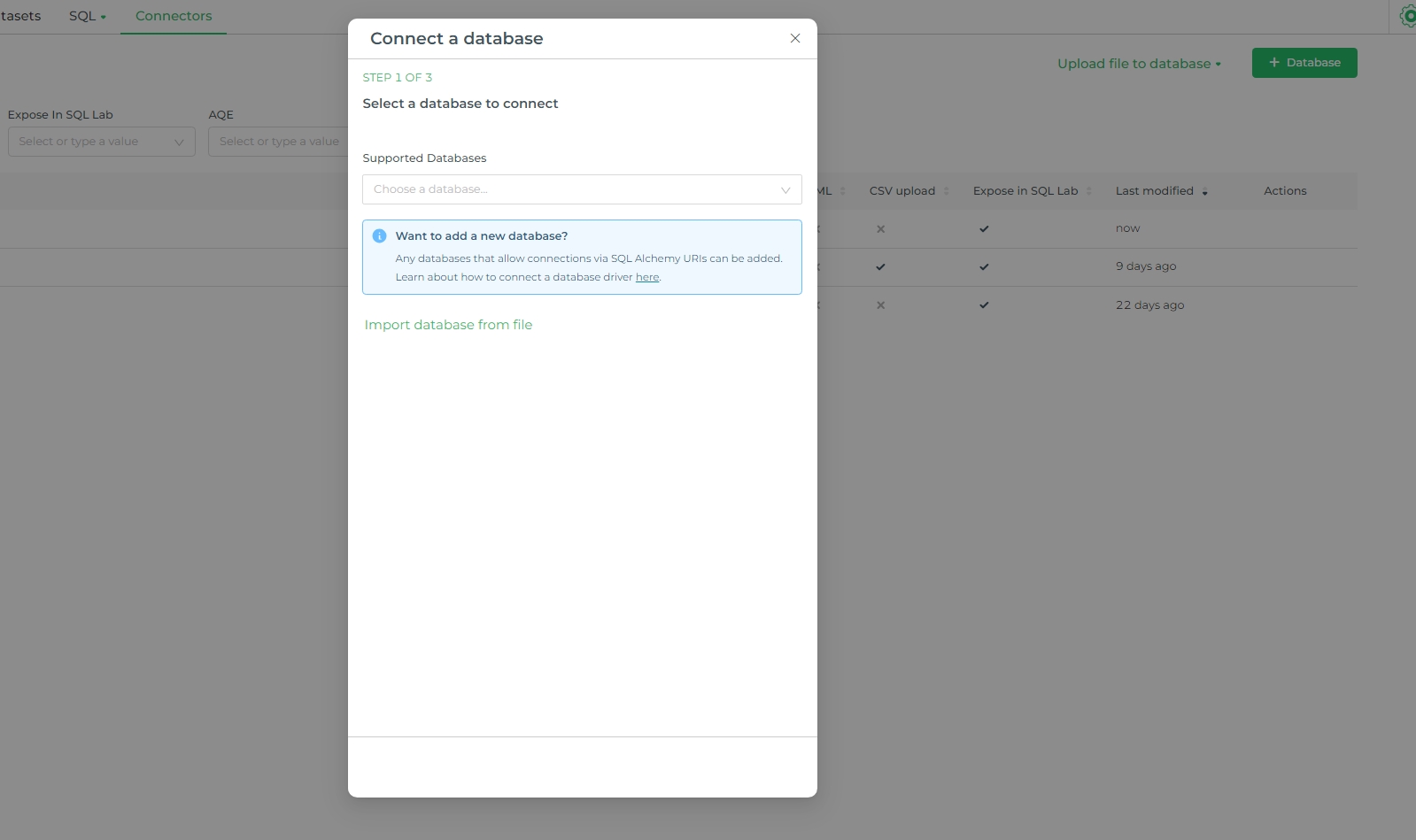
To connect a database, start by selecting + Database on the DronaHQ Dashboard. Then, in the Connect a Database window, choose the database you want to connect to from the Supported Databases field.

List of DB

Apache Druid​

FieldDescription
Display NameApache Druid. Pick a name to help you identify this database.
SQLAlchemy URIengine+driver://user:password@host:port/dbname[?key=value&key=value...] Refer to the SQLAlchemy docs for more information on structuring your URI.

Apache Hive​

FieldDescription
Display NameApache Hive. Pick a name to help you identify this database.
SQLAlchemy URIengine+driver://user:password@host:port/dbname[?key=value&key=value...] Refer to the SQLAlchemy docs for more information on structuring your URI.

Apache Spark SQL​

FieldDescription
Display NameApache Spark SQL. Pick a name to help you identify this database.
SQLAlchemy URIengine+driver://user:password@host:port/dbname[?key=value&key=value...] Refer to the SQLAlchemy docs for more information on structuring your URI.

Aurora MySQL (Data API)​

FieldDescription
Display NameAurora MySQL (Data API). Pick a name to help you identify this database.
SQLAlchemy URImysql+auroradataapi://{aws_access_id}:{aws_secret_access_key}@/{database_name}?aurora_cluster_arn={aurora_cluster_arn}&secret_arn={secret_arn}&region_name={region_name} Refer to the SQLAlchemy docs for more information on structuring your URI.

Using Dynamic Form​

FieldDescription
HostThe hostname or IP address of the database server.
PortThe port number on which the database server is listening.
Database nameThe name of the database you are trying to connect to.
UsernameThe username for authenticating with the database.
PasswordThe password for authenticating with the database.
Display NamePick a nickname for how the database will display in dashboard.
Additional ParametersAny additional custom parameters required for the connection.
SSLToggle for SSL configuration.
SSH TunnelToggle for SSH tunnel configuration.

Aurora PostgreSQL (Data API)​

FieldDescription
Display NameAurora PostgreSQL (Data API). Pick a name to help you identify this database.
SQLAlchemy URIpostgresql+auroradataapi://{aws_access_id}:{aws_secret_access_key}@/{database_name}?aurora_cluster_arn={aurora_cluster_arn}&secret_arn={secret_arn}&region_name={region_name} Refer to the SQLAlchemy docs for more information on structuring your URI.

Using Dynamic Form​

FieldDescription
HostThe hostname or IP address of the database server.
PortThe port number on which the database server is listening.
Database nameThe name of the database you are trying to connect to.
UsernameThe username for authenticating with the database.
PasswordThe password for authenticating with the database.
Display NamePick a nickname for how the database will display in dashboard.
Additional ParametersAny additional custom parameters required for the connection.
SSLToggle for SSL configuration.
SSH TunnelToggle for SSH tunnel configuration.

Google Sheets​

FieldDescription
Display NameGoogle Sheets. Pick a nickname for how the database will display in dashboard.
Type of Google Sheets allowedConnect Google Sheets as tables to this database
Google Sheet Name and URLEnter a name for this sheet. Paste the shareable Google Sheet URL here.

MySQL​

FieldDescription
Display NameMySQL. Pick a name to help you identify this database.
SQLAlchemy URIdialect+driver://username:password@host:port/database Refer to the SQLAlchemy docs for more information on structuring your URI.

Using Dynamic Form​

FieldDescription
HostThe hostname or IP address of the database server.
PortThe port number on which the database server is listening.
Database nameThe name of the database you are trying to connect to.
UsernameThe username for authenticating with the database.
PasswordThe password for authenticating with the database.
Display NamePick a nickname for how the database will display in dashboard.
Additional ParametersAny additional custom parameters required for the connection.
SSLToggle for SSL configuration.
SSH TunnelToggle for SSH tunnel configuration.

PostgreSQL​

FieldDescription
Display NamePostgreSQL. Pick a name to help you identify this database.
SQLAlchemy URIdialect+driver://username:password@host:port/database Refer to the SQLAlchemy docs for more information on structuring your URI.

Using Dynamic Form​

FieldDescription
HostThe hostname or IP address of the database server.
PortThe port number on which the database server is listening.
Database nameThe name of the database you are trying to connect to.
UsernameThe username for authenticating with the database.
PasswordThe password for authenticating with the database.
Display NamePick a nickname for how the database will display in dashboard.
Additional ParametersAny additional custom parameters required for the connection.
SSLToggle for SSL configuration.
SSH TunnelToggle for SSH tunnel configuration.

Presto​

FieldDescription
Display NamePresto. Pick a name to help you identify this database.
SQLAlchemy URIengine+driver://user:password@host:port/dbname[?key=value&key=value...] Refer to the SQLAlchemy docs for more information on structuring your URI.

Shillelagh​

FieldDescription
Display NameShillelagh. Pick a name to help you identify this database.
SQLAlchemy URIshillelagh:// Refer to the SQLAlchemy docs for more information on structuring your URI.

SQLite​

FieldDescription
Display NameSQLite. Pick a name to help you identify this database.
SQLAlchemy URIengine+driver://user:password@host:port/dbname[?key=value&key=value...] Refer to the SQLAlchemy docs for more information on structuring your URI.

Trino​

FieldDescription
Display NameTrino. Pick a name to help you identify this database.
SQLAlchemy URIengine+driver://user:password@host:port/dbname[?key=value&key=value...] Refer to the SQLAlchemy docs for more information on structuring your URI.

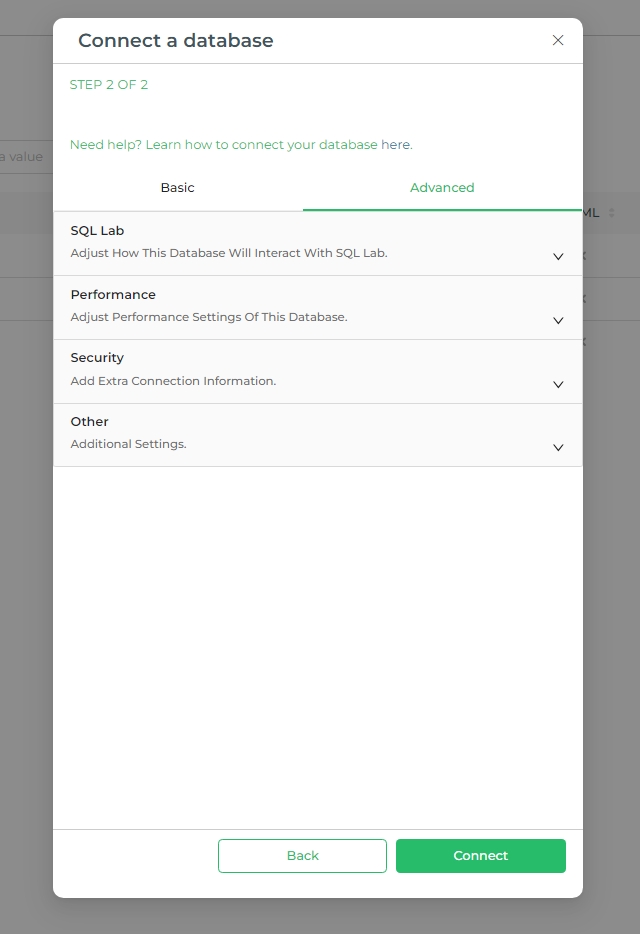
Advanced Configuration​

List of DB

SQL Labs​

SQL Labs allows you to adjust how the database interacts with SQL Lab, providing fine control over SQL operations and user interactions:

  • Expose Database in SQL Lab: Enable or disable the database's visibility in SQL Lab.
  • Allow CREATE TABLE AS: Permit the creation of new tables using the CREATE TABLE AS statement.
  • Allow CREATE VIEW AS: Permit the creation of new views using the CREATE VIEW AS statement.
  • Allow DML: Enable Data Manipulation Language (DML) operations like INSERT, UPDATE, DELETE.
  • Enable Query Cost Estimation: Allow estimation of query costs before execution.
  • Allow This Database to be Explored: Permit users to explore the database.
  • Disable SQL Lab Data Preview Queries: Prevent data preview queries in SQL Lab to improve performance.
  • Enable Row Expansion in Schemas: Allow expansion of rows in schemas for detailed views.

Performance​

Performance settings ensure optimal database interaction and response times:

  • Chart Cache Timeout: Define the caching timeout duration for charts in seconds. A timeout of 0 indicates the cache never expires, while -1 bypasses the cache entirely. If undefined, it defaults to the global timeout.
  • Schema Cache Timeout: Set the metadata caching timeout for schemas in seconds. Leaving it unset means the cache never expires.
  • Table Cache Timeout: Define the metadata caching timeout for tables in seconds. If unset, the cache never expires.
  • Asynchronous Query Execution: Enable asynchronous execution of queries to enhance performance.
  • Cancel Query on Window Unload Event: Automatically cancel queries when the browser window is closed.

Security​

Security settings add extra layers of connection information and control:

  • Secure Extra: Provide additional connection configuration as a JSON string. This is particularly useful for systems like Hive, Presto, and BigQuery, which do not conform to the standard username:password syntax.
  • Root Certificate: Enter CA_BUNDLE contents to validate HTTPS requests. This option is available for certain database engines.
  • Impersonate Logged-In User: Allow impersonation of the logged-in user for specific databases like Presto, Trino, Drill, Hive, and Google Sheets.
  • Allow File Uploads to Database: Enable the ability to upload files directly to the database.

Other​

Additional settings provide further customization options:

  • Metadata Parameters: Configure the metadata_params object, which gets unpacked into the sqlalchemy.MetaData call.
  • Engine Parameters: Set the engine_params object, which is unpacked into the sqlalchemy.create_engine call.
  • Version: Specify the database version number. This is important for databases like Presto for query cost estimation and Dremio for syntax changes.

Import & Export a Database​

Import a Database​

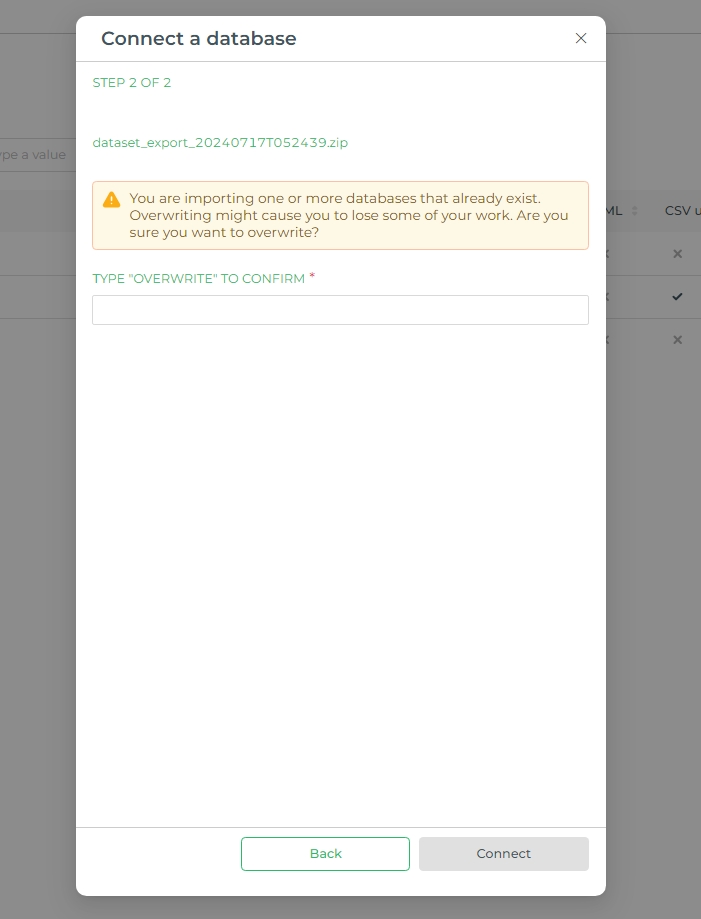
If you have an archived database connection file (e.g., ZIP), then you can import it directly to DronaHQ Dashboard. The steps are similar to adding a database, just in place of selecting a database you have to select the Import Datbase from File option and it will open a window to upload files from your system.


Overwrite Warning

If you are importing a file for a database that already exists, you will be prompted to confirm the process by entering the word overwrite before selecting Connect.

List of DB

Export a Database​

Go to the list of connectors already connected in dashboard and select the export option to export the particular database in an archived database connection file (e.g., ZIP).